

OneNote Still Won't Read Markdown: What Actually Works in 2026
11/13/26...About 10 min
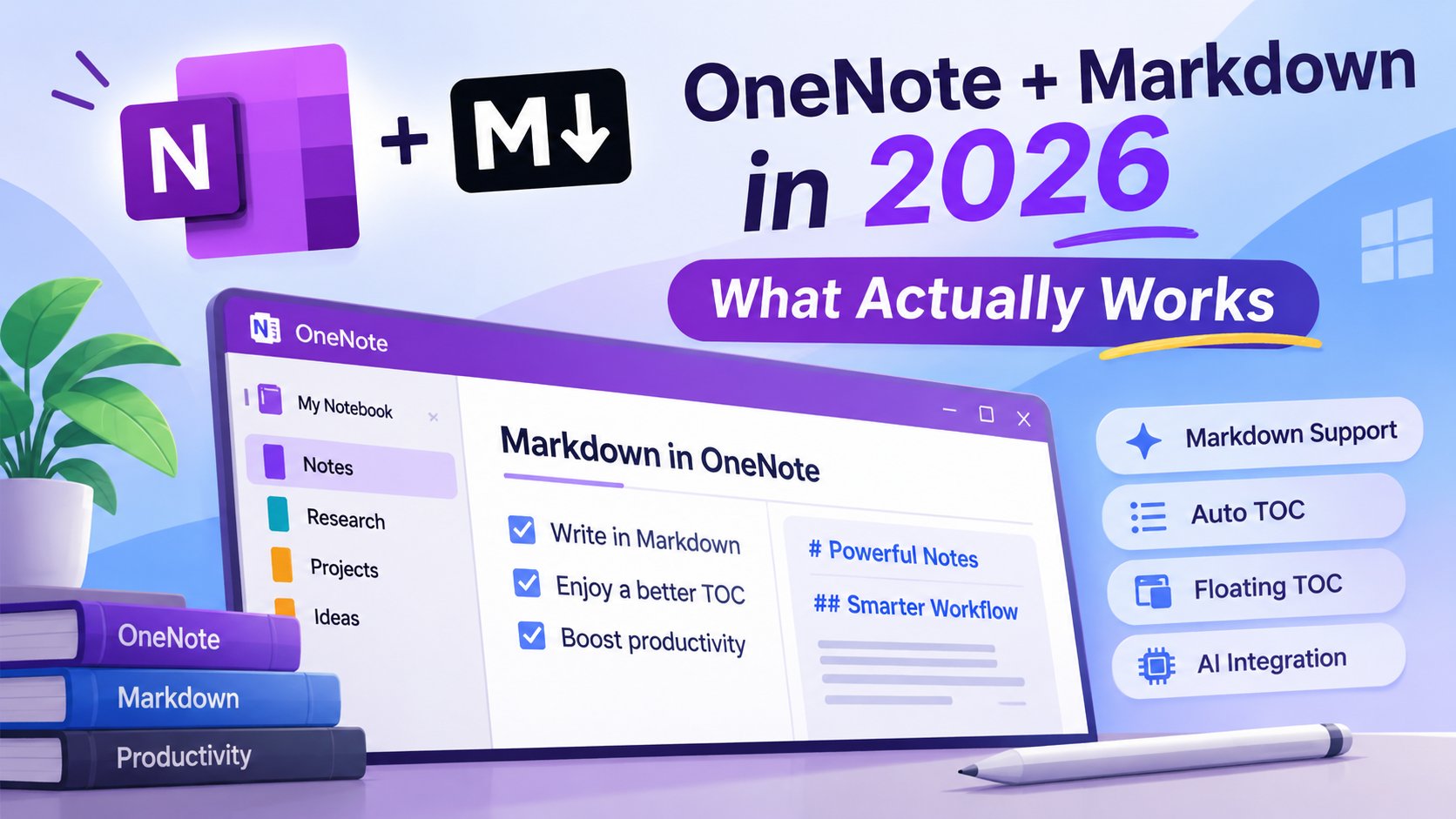
No, OneNote still doesn't support Markdown. Not "sort of". Not if you flip the right setting. Not in a beta channel nobody told you about. As of November 2026, the desktop app will not parse it, render it, import it or export it.
You know the moment. ChatGPT hands you a tidy answer with headings, a small table and a code block. You copy it, alt-tab into OneNote, paste — and get a wall of hash marks, asterisks and pipes. The table has to be rebuilt cell by cell. The code has no monospace. Somehow the answer is less readable than it was in the chat window.
The irony in 2026 is hard to miss. Every major AI assistant emits Markdown by default, including Microsoft's own Copilot, and Microsoft's own note-taking app can't read it.
Most writing on this subject either tells you to live with it or quietly pitches the author's converter. So here's the comparison I wanted when I went looking: every route that genuinely works, the tools on each one, who each is for, where the snags are, and the point where you should stop bothering altogether.
First, a mix-up worth clearing up
Microsoft has shipped Markdown-related capabilities for .md files in OneDrive and SharePoint. That gets reported surprisingly often as "OneNote now supports Markdown." It doesn't. Those features apply to files sitting in cloud storage; they do nothing to the rich-text editing model of a OneNote page.
And yes, typing - or 1. in OneNote does produce a real bullet or numbered list. That's OneNote's autoformat eating the marker and producing rich text, not Markdown parsing — there is no Markdown source kept behind the page. The test is simple: does your content end up as a .md file, or as text inside a OneNote page? Everything below is about the second case.
What actually happens when you paste Markdown
Headings become hash marks. Paste ## Project Status and OneNote shows exactly that. No heading style, no font change, no outline level. A ten-section document turns into ten lines with # prefixes that look like a formatting bug.
Bold becomes asterisks. **critical deadline** keeps both asterisks, visibly. The intent is perfectly clear to any human; OneNote doesn't look.
Tables become pipe characters. This is the most visually jarring one. A Markdown table pastes as a few lines of pipes and dashes. No cells, no borders, no alignment. For data-heavy AI output it's the single most expensive failure, because you rebuild the thing by hand.
Code blocks keep their backticks. Three backticks displayed as text, no monospace, no syntax highlighting, no visual separation from prose.
Lists lose their structure. -, * and 1. are ordinary characters. Nested lists, which depend on indentation, collapse into a ragged wall of spaces.
Links stay in brackets. [click here](url) shows up exactly as written. The address is visible but not clickable.
You're getting the source code of your document instead of the document. And OneNote isn't rendering Markdown badly — it isn't attempting to recognise it at all. Which means every fix has to happen before the content reaches the page, or through a third-party component that takes over rendering inside it.
Why it still hasn't been fixed after all these years
This is the part that frustrates people most, because the demand isn't obscure. High-vote OneNote Markdown requests piled up on UserVoice before Microsoft retired it, moved over to the Feedback Portal, and sat there. No delivery date has ever been publicly committed.
The reasons are visible from the product, even if the internal priorities aren't.
OneNote is a free-form canvas. Text boxes, images, handwriting, audio and attachments can be placed anywhere, overlap, or sit side by side. Markdown is strictly linear — heading, paragraph, list, table — with no concept of coordinates. Mapping a Markdown stream onto a canvas forces a bunch of extra decisions: where does this heading go, how wide is its container, what happens to everything after it? Word and Google Docs get those answers for free. A canvas doesn't.
Then there's where the visible work has gone. Recent OneNote changes cluster around Copilot: summarising, rewriting, generating to-dos, answering questions about a notebook. Those deal with content created inside OneNote. Bringing in structured output from somewhere else is a different problem. Even Loop, the newer collaboration tool, uses its own component blocks rather than Markdown.
Meanwhile the rest of the category moved. Evernote has added Markdown input over the past few years. Notion has native shortcuts and full import/export. Obsidian is Markdown all the way down, and editors like Bear and Typora have always spoken it. Only OneNote is still standing here, looking more and more like the odd one out — so waiting for native support isn't worth planning around. Here's what works now.
Route one: render it somewhere else, then paste
OneNote handles pasted rich text surprisingly well. Copy formatted content from a browser, Word, or anything that writes rich text to the clipboard, and headings, bold, links, tables and lists all land as native elements. The problem was never "OneNote can't display formatting". It's "OneNote won't turn Markdown syntax into formatting". Once you see that, the cheapest workaround is obvious: render first, copy second.
Any Markdown previewer works. Paste your text, select the rendered output, copy, paste into OneNote. It works on every version including the web app, and installs nothing.
VS Code users have it built in: open the .md file, hit Ctrl+Shift+V, select the preview, copy.
Unmarkdown is a tool built around exactly this step. You pick OneNote as the destination and it converts your Markdown into rich text tuned for OneNote's renderer — all six heading levels, real table cells, monospace code blocks, nested lists, clickable links — and puts it on the clipboard. For a one-off paste, it's about as frictionless as this route gets.
Pandoc takes the heavier path: pandoc input.md -o output.docx, open in Word, copy, paste. More steps, but it handles complex Markdown — maths, footnotes, cross-references — better than most converters, and you can script it for batches.
The catch is the extra step, every single time. Code highlighting, LaTeX and Mermaid also tend to get lost in conversion, which is awkward because those are exactly what AI answers are full of. Twice a week, fine. Ten times a day and you'll start looking for an add-in.
Route two: install a OneNote Markdown add-in(plugin) and let OneNote do it itself
A COM add-in works inside the page and converts Markdown syntax into native OneNote headings, tables, lists and code blocks. That matters: the result isn't a pasted image. It stays searchable, syncable, editable offline and editable later. There are more contenders here than most articles bother to mention, so let's go through them.
OneMark
The oldest one here. Write your Markdown, press F5, and the whole page renders as formatted rich text — GFM tables, task lists, syntax-highlighted code, LaTeX and a generated table of contents. Licensing is a buyout or an annual subscription (Lite for 1 device, Pro for 2), with a 14-day full-featured trial; once that expires, live rendering stops.
The catches are minor: whole-page rendering needs a manual F5, and it's OneNote desktop only.
OneMore
OneMore is an MPL-2.0 open-source, free, community-maintained swiss-army add-in; Markdown is one item among a large pile of commands. Headings, bold, links, lists, code blocks and tables all convert cleanly.
It's a formatter with a paste command rather than a Markdown editor, so there's no source view — don't try to use it as one.
OneNote Gem (One Markdown)
A paid add-in suite whose "One Markdown" feature goes both ways: batch-import .md files as OneNote pages and export OneNote pages back to Markdown. If you're trying to get notes out, that direction is genuinely useful.
HydroMark
The most complete attempt at "write it as you type" in this group. It's a 2026-era Windows COM add-in built to bring OneNote up to speed with the Markdown editors everyone else has moved to. Type # plus a space and you have a heading; - plus a space and you have a bullet — no need to wait for Enter. Ctrl+Shift+V pastes clipboard Markdown already rendered. Ctrl+Space flips the current line back to source, Ctrl+, flips the whole page. F8 exports the page as .md with images in a same-named folder.
Go deeper and there's highlighting for 200+ languages, LaTeX maths, Mermaid and ZenUML diagrams, checkable tasks, footnotes, a slash-command palette, a TOC that docks on the left plus a floating one you can move anywhere, and a bring-your-own-key AI sidebar with 14 built-in providers and no vendor server in the middle — you can paste an image into the sidebar and ask about it too. The UI comes in 12 languages and follows OneNote's display language, including right-to-left Arabic.
The catch is simple: Windows and OneNote desktop only, and a paid licence after the 14-day trial.
If you need real-time collaboration, skip this whole section.
Route three: stop writing in OneNote
If Markdown is the main character in your workflow rather than an occasional guest, the more useful question is whether you should still be in OneNote at all.
Obsidian stores notes as plain .md files on your disk, renders as you type, adds backlinks and a plugin ecosystem with over a thousand community plugins, and runs on Windows, Mac, Linux, iOS and Android. For anyone working with AI output daily it's the most natural destination. Trade-offs vs. OneNote: no free-form canvas, no native handwriting or audio recording, sync needs the paid service or your own setup, and collaboration is weaker than shared notebooks.
Logseq takes a different shape: open source, local-first, with notes stored as Markdown or Org files on your own disk — but organised as a block-based outliner rather than documents. Every bullet is a block you can reference, backlink and query, with daily journals, PDF annotation and whiteboards. Free for personal use, on Windows, Mac, Linux, iOS and Android, with over a hundred plugins. Trade-offs: block references and the query syntax have a learning curve if you're used to writing one document from top to bottom. Cross-device sync is still a beta service, so plenty of people wire up Git or a cloud folder themselves. And there are now two product lines — the file-based graph and the newer database version — so check which one you're downloading.
Notion uses a block editor that accepts Markdown input and converts headings, lists, code blocks and basic tables — plus databases, boards and a full collaboration layer. Trade-offs: effectively online-only with limited offline support, a different mental model (pages and databases instead of notebooks and sections), and no plain Markdown files on disk.
Bear is Markdown-native on macOS and iOS, with a lovely tag system and a clean writing surface. Apple users tend to fall for it. Trade-offs: Apple only, no Windows, Android or web, no collaboration, and tags instead of a real hierarchy.
Typora renders live as you type, supports LaTeX and Mermaid, and exports to PDF, HTML and Word. Trade-offs: desktop only, single-user, no notebooks or tags — just files in folders.
MarkText is the most single-minded of the bunch: MIT-licensed, completely free, a desktop WYSIWYG editor for Windows, Mac and Linux that renders as you type with no split preview. It speaks CommonMark and GFM, handles KaTeX maths and front matter, offers source, typewriter and focus modes, and exports HTML and PDF. Trade-offs: it edits files, not a note collection — no backlinks, no tag system, no sync; organising across devices is entirely a folder problem. It's an Electron app, so it isn't light on memory. If you just want a clean live-preview editor without paying for one, it's the straightforward pick; don't expect it to manage your notes for you.
Joplin is open source and Markdown-native, and is a common landing spot when people move their notes out of OneNote.
What these have in common is that Markdown needs no workaround. If you want to split them further: Obsidian, Logseq and Joplin manage a collection of notes, Typora and MarkText edit individual files, and Notion and Bear each have their own data model. Deciding whether you want a library or an editor is more useful than comparing feature lists. What they cost is the canvas, the handwriting and the notebook structure you already have. If your actual goal is "switch to a Markdown file system", that isn't a cost — it's the point.
Route four: move the whole notebook, or build a pipeline
onenote-md-exporter runs in the opposite direction, turning entire OneNote notebooks into Markdown files with folder hierarchy and images. It's the right tool for a plain-text backup or a migration to Obsidian or Notion. It's one-way, you stop editing in OneNote afterwards, and it's bounded by what a OneNote page can express — ink and some attachments are lost or flattened into images.
The Microsoft Graph API is the developer escape hatch. Convert Markdown to HTML and POST it to /me/onenote/pages; you get a properly formatted page with real headings and tables. It suits internal knowledge-base syncing or docs generated from CI, and it's the only option you can genuinely orchestrate. It also costs app registration, auth, error handling and long-term maintenance. For one person taking notes, that's a bad trade.
If you skipped everything above
| Your situation | Just use this | Why not the others |
|---|---|---|
| You paste an AI answer once or twice a week | Unmarkdown / any previewer | Installing anything is overkill |
| You write in OneNote all day, want AI actions, AI generation and a command palette | HydroMark | it's the only one with a command palette and an AI assistant markdown addin |
| Mac, web app, or real-time collaboration | Obsidian, Logseq, Notion, or render-to-HTML first | The entire add-in route doesn't apply |
You want the whole notebook as .md files | onenote-md-exporter | Add-ins export per page |
| You need this inside CI or an internal system | Graph API | Nothing else is scriptable |
| You just want a simple Markdown experience | OneMore | Basic Markdown syntax, nothing more |
| You want a traditional, more fully-featured Markdown experience | OneMark | The older, established Markdown add-in |
A few questions people always ask
Does OneNote support Markdown? No. As of November 2026 the desktop app doesn't parse, render or export it. Your options are converting to HTML first, installing an add-in, switching editors, or building against the Graph API.
Does Microsoft's .md support in OneDrive and SharePoint change that? No. That applies to files in cloud storage, not to the rich-text model of a OneNote page. Look at where your content ends up and the distinction is obvious.
How do I get a OneNote page out as Markdown? OneNote has no built-in command for it. HydroMark does it per page with F8, OneNote Gem's One Markdown goes both ways, and onenote-md-exporter handles a whole notebook in one pass.
Will an add-in turn my notes into images? Not OneMark, OneMore or HydroMark — they produce native OneNote elements, so the content stays searchable and editable. That's precisely what separates them from pasting a screenshot of rendered Markdown.
Is there a free option? Plenty. A previewer costs nothing, OneMore is MPL-2.0 open source and free, onenote-md-exporter and Joplin are open source, Obsidian is free for personal use, Logseq is free forever for personal use, and MarkText is MIT-licensed and completely free. Two names are often misreported: OneMark has a 14-day full-featured trial and then a buyout or subscription — no free tier — and HydroMark is commercial too, with a 14-day trial and no permanent free tier. Check each vendor's site before spending anything.
What if I'm on a Mac? Skip the entire add-in route. Either render to HTML and paste, or move to a cross-platform Markdown editor.
The bottom line
The tools exist, and they genuinely work. OneMark renders, Unmarkdown converts, Obsidian just supports Markdown natively, and HydroMark is the one that puts live rendering and per-page export in the same place — and it's a more modern take than the older add-ins, with a command palette and AI that can both generate and act on your content, which makes writing Markdown a lot easier. Choosing between them isn't really about who has the longest feature list — it's about which single thing you refuse to give up: staying in OneNote, having plain-text source files, writing on a Mac, or spending nothing. And ask yourself whether you want to write everything by hand or get help from AI. Settle those and the list usually collapses to one.
The slightly irritating bit is that pasting formatted text into a note-taking app shouldn't require a decision at all.
Random Posts

OneMark vs HydroMark: Which OneNote Markdown Add-in Should You Use? (2026 Comparison)9/19/26
DeepSeek Review: A Hands-On Look at the Budget-Friendly Chinese LLM9/16/26
Page Config1/1/20
What Is a Large Language Model (LLM)? A Plain-English Guide9/8/26
HydroMark 1.1.0: An AI Assistant That Writes Into OneNote, Not Just Chats10/9/26
What Is RAG (Retrieval-Augmented Generation)? Giving AI Access to Your Private Knowledge9/10/26